
Àpèjúwe
View WPListCal plugin information using the JSON API plugin with this simple WordPress plugin.
After installing and activating you can use the upcomming events in your external applications.
Àwọn àwòrán ìbòjú
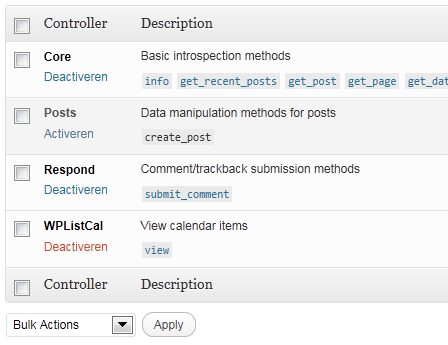
Ìgbéwọlẹ̀
The automatic plugin installer should work for most people. Manual installation is easy and takes fewer than five minutes.
- Create a wplistcal-json directory in your plugins directory. Typically thatÌtumọ̀ Yorùbá: ’s wp-content/plugins/wplistcal-json/.
- Into this new directory upload the plugin files (wplistcal-json.php, etc.)
- Activate the plugin through the ‘Plugins’ menu in WordPress.
- Activate the ‘WPListCal’ controller through the ‘JSON API’ options page.
FAQ
- Does it work with older versions of WordPress?
-
I donÌtumọ̀ Yorùbá: ’t know, try it and let me know.
Àwọn àgbéyẹ̀wò
Kò sí àwọn àgbéyẹ̀wò fún plugin yìí.
Àwọn Olùkópa & Olùgbéejáde
“WPListCal JSON” jẹ́ ètò ìṣàmúlò orísun ṣíṣí sílẹ̀. Àwọn ènìyàn wọ̀nyí ti ṣe ìkópa sí plugin yìí.
Àwọn Olùkópa
Túmọ̀ “WPListCal JSON” sí èdè rẹ.
Ṣe o nífẹ̀ẹ́ sí ìdàgbàsókè?
Ṣàwárí koodu, ṣàyẹ̀wò ibi ìpamọ́ SVN, tàbí ṣe àgbékalẹ̀ sí àkọsílẹ̀ ìdàgbàsókè nípasẹ̀ RSS.
Àkọsílẹ̀ àwọn àyípadà
1.1
- Bugfix: Sorting results
1.0
- Initial release