

Àpèjúwe
Slideshow Reloaded provides an easy way to integrate a slideshow for any WordPress installation.
Any image or video can be loaded into the slideshow by picking it from the WordPress media page.
This is a fork (an updated clone) of Stenfran BoonstraÌtumọ̀ Yorùbá: ’s Slideshow. I fixed several bugs, completed some feature requests from the original pluginÌtumọ̀ Yorùbá: ’s support forum, updated deprecated code, and tested it in recent versions of WordPress and PHP.
If youÌtumọ̀ Yorùbá: ’re using the old plugin, all of your existing slideshows will automatically work with this version.
Features
- Image slides
- Video slides
- Text slides
- YouTube slides
- Responsive
- SEO friendly
- Works in posts, pages, and the sidebar
- Animations personalization
Languages
- Bulgarian (87% Ìtumọ̀ Yorùbá: – bg_BG Ìtumọ̀ Yorùbá: – Translated by Ilko Ivanov)
- Chinese (65% Ìtumọ̀ Yorùbá: – zh_CN Ìtumọ̀ Yorùbá: – Translated by Kevin Tell and Leo Newbiesup)
- Czech (81% Ìtumọ̀ Yorùbá: – cs_CZ Ìtumọ̀ Yorùbá: – Translated by Edhel)
- Dutch (100% Ìtumọ̀ Yorùbá: – nl_NL Ìtumọ̀ Yorùbá: – Translated by Stefan Boonstra (ThatÌtumọ̀ Yorùbá: ’s me!))
- English (100%)
- Finnish (83% Ìtumọ̀ Yorùbá: – fi Ìtumọ̀ Yorùbá: – Translated by A. Nonymous)
- French (91% Ìtumọ̀ Yorùbá: – fr_FR Ìtumọ̀ Yorùbá: – Translated by Romain Sandri)
- German (99% Ìtumọ̀ Yorùbá: – de_DE Ìtumọ̀ Yorùbá: – Translated by Markus Amann and others)
- Hebrew (53% Ìtumọ̀ Yorùbá: – he_IL Ìtumọ̀ Yorùbá: – Translated by Eli Segev)
- Italian (83% Ìtumọ̀ Yorùbá: – it_IT Ìtumọ̀ Yorùbá: – Translated by Tecnikgeek)
- Japanese (82% Ìtumọ̀ Yorùbá: – ja Ìtumọ̀ Yorùbá: – Translated by Michihide Hotta)
- Norwegian (99% Ìtumọ̀ Yorùbá: – nb_NO Ìtumọ̀ Yorùbá: – Translated by A. Nonymous)
- Persian (100% Ìtumọ̀ Yorùbá: – fa_IR Ìtumọ̀ Yorùbá: – Translated by W3Design)
- Polish (83% Ìtumọ̀ Yorùbá: – pl_PL Ìtumọ̀ Yorùbá: – Translated by Wicher Wiater)
- Portuguese (92% Ìtumọ̀ Yorùbá: – pt_BR Ìtumọ̀ Yorùbá: – Translated by Piero Luiz and others)
- Portuguese (83% Ìtumọ̀ Yorùbá: – pt_PT Ìtumọ̀ Yorùbá: – Translated by Filipe Catraia)
- Russian (100% Ìtumọ̀ Yorùbá: – ru_RU Ìtumọ̀ Yorùbá: – Translated by Coupofy and Dmitry Fatakov)
- Serbo-Croatian (91% Ìtumọ̀ Yorùbá: – sr_RS Ìtumọ̀ Yorùbá: – Translated by Webhosting Hub)
- Spanish (51% Ìtumọ̀ Yorùbá: – es_ES Ìtumọ̀ Yorùbá: – Translated by Violeta Rosales)
- Swedish (91% Ìtumọ̀ Yorùbá: – sv_SE Ìtumọ̀ Yorùbá: – Translated by Åke Isacsson and Wilhelm Svenselius)
- Turkish (83% Ìtumọ̀ Yorùbá: – tr_TR Ìtumọ̀ Yorùbá: – Translated by İlker Akdoğan)
- Ukrainian (100% Ìtumọ̀ Yorùbá: – uk_UK Ìtumọ̀ Yorùbá: – Translated by Coupofy)
Need the (uncompressed) source code?
Find the Slideshow projectÌtumọ̀ Yorùbá: ’s source code in GitHub repository. The
uncompressed files can be compiled using Prepros, or CodeKit.
Links
Àwọn àwòrán ìbòjú

HereÌtumọ̀ Yorùbá: ’s what a default slideshow can look like.

Create a new slideshow. Slides and settings specific to this slideshow can be set here.

If you havenÌtumọ̀ Yorùbá: ’t uploaded any images yet, you can do so on the WordPress media page.

Click the ‘Media Slide’ button in the Slides List to search and pick images from the WordPress media page. Click ‘Insert’ to insert the image or video in the slide.

The images you selected are directly visible in your Slides List, donÌtumọ̀ Yorùbá: ’t forget to save!

When you understand the basics of creating slideshows, you may want to go a little more in depth and have a look at the General Settings page. As seen in the image above, privileges can be granted to user roles to give users the ability to add, edit or delete slideshows.
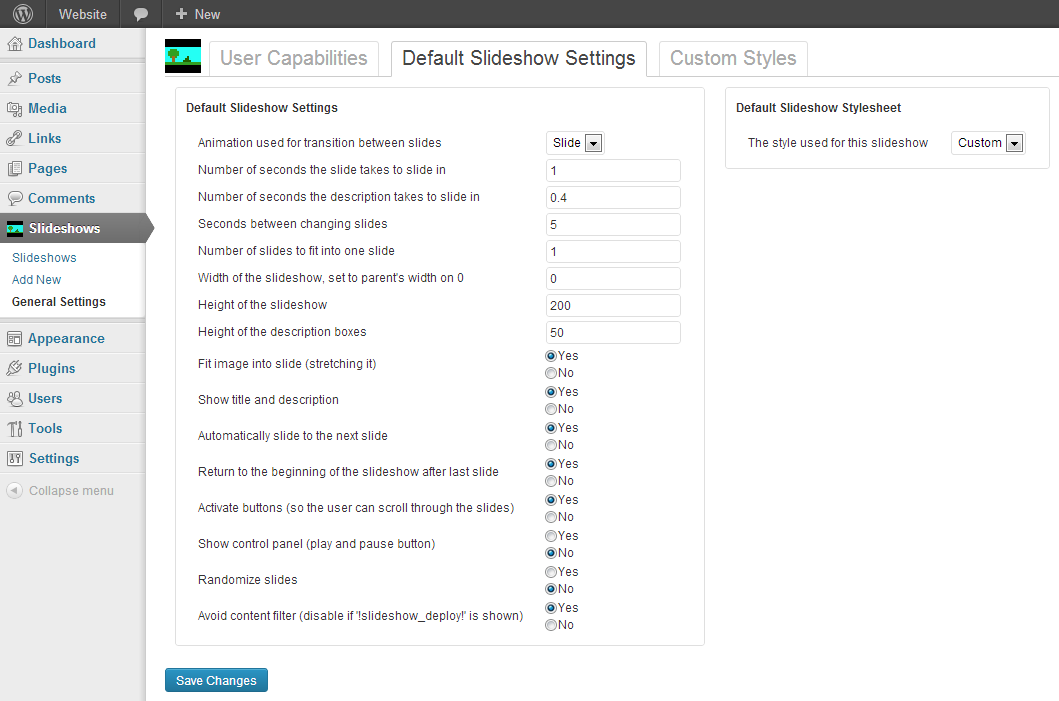
Default slideshow settings can be edited here. Slideshows that are newly created, will start out with these options.
Ìgbéwọlẹ̀
-
Install Slideshow either via the WordPress.org plugin directory, or by uploading the files to your server.
-
After activating Slideshow, click on ‘Slideshows’ and create a new slideshow.
-
Click on ‘Insert Media Slide’ to insert an image or video slide.
-
Go to a post or a page and add a shortcode with “[slideshow_reloaded id=Ìtumọ̀ Yorùbá: ’123Ìtumọ̀ Yorùbá: ′]”.
FAQ
- How do I add image slides?
-
Click the ‘Image slide’ button in the ‘Slides List’ of the slideshow. A screen will pop up where youÌtumọ̀ Yorùbá: ’ll be able to search though all images that have already been uploaded to your WordPress website. If you want to add new images to the slideshow, or you do not have any images yet, youÌtumọ̀ Yorùbá: ’ll have to upload them to the WordPress media page first.
- How do I change a slideshowÌtumọ̀ Yorùbá: ’s settings?
-
Just like the posts and pages youÌtumọ̀ Yorùbá: ’re already familiar with, slideshows can be edited. Go to the ‘Slideshows’ tab in your WordPress admin, and youÌtumọ̀ Yorùbá: ’ll see a list of slideshows. If you have not created a slideshow yet, you can do so by clicking ‘Add new’ on that same page. If there are slideshows in the list, click on the title of the slideshow you want to change the settings of. On the slideshowÌtumọ̀ Yorùbá: ’s edit page youÌtumọ̀ Yorùbá: ’ll be able to find a box titled ‘Slideshow Settings’, in this box you can change the slideshowÌtumọ̀ Yorùbá: ’s settings.
If youÌtumọ̀ Yorùbá: ’re creating multiple slideshows that should have the same settings, but their settings need to be different from the default settings, you can change the default settings by going to the ‘General Settings’ page and clicking on the ‘Default Slideshow Settings’ tab. Newly created slideshows will start off with the settings you set there.
- How do I customize the slideshowÌtumọ̀ Yorùbá: ’s style?
-
On your WordPress admin page, go to the ‘Slideshows’ menu item and click on ‘General Settings’, then go to the ‘Custom styles’ tab. Here youÌtumọ̀ Yorùbá: ’ll see a list of default stylesheets, such as ‘Light’ and ‘Dark’, and a list of custom stylesheets; The ones you created.
Choose a default stylesheet youÌtumọ̀ Yorùbá: ’d like to customize and click ‘Customize’ to open the ‘Custom style editor’. When youÌtumọ̀ Yorùbá: ’re done editing click ‘Save Changes’ and go to the slideshow youÌtumọ̀ Yorùbá: ’d like to style with the newly created stylesheet. In the ‘Slideshow Style’ box you can now find and select your custom stylesheet. You can set a stylesheet for multiple slideshows.
If youÌtumọ̀ Yorùbá: ’ve already created a custom stylesheet, you can edit it by clicking ‘Edit’. You can also delete it by clicking ‘Delete’. Be careful with this though, a deleted stylesheet cannot be retrieved and cannot be used by any slideshow anymore.
- Some users can add, edit or delete slideshows, although I do not want them to. Can I prevent this from happening?
-
Yes you can. On your WordPress admin page, go to the ‘Slideshows’ menu item and click on ‘General Settings’, then go to the ‘User Capabilities’ tab (If youÌtumọ̀ Yorùbá: ’re not already there). The privileges that allow user groups to perform certain actions are listed here. To allow, for instance, a contributor to add a slideshow, click the box in front of ‘Contributor’ to grant them the right to add slideshows.
Note that when you grant someone the right to add or delete a slideshow, youÌtumọ̀ Yorùbá: ’ll also automatically grant them the right to edit slideshows, as this right is required to add or delete slideshows. The same is true for the reversed situation.
- The slideshow does not show up
-
-
The slideshow is mostly called after the
</head>tag, which means the scripts and stylesheet need to load in the footer of the website. A theme that has no<?php wp_footer() ?>call in itÌtumọ̀ Yorùbá: ’s footer will not be able to load the slideshowÌtumọ̀ Yorùbá: ’s scripts. -
Often when the slideshow isnÌtumọ̀ Yorùbá: ’t showing, thereÌtumọ̀ Yorùbá: ’s a Javascript error somewhere on the page and this error has caused Javascript to break. For the slideshow to work again, this error needs to be fixed. Check if any errors were thrown by opening Google Chrome or Firefox (with Firebug installed) and press the ‘F12’ key. Errors show in the console tab.
-
- Why does Internet Explorer show a big blank space above the slideshow?
-
Internet Explorer is a very strict browser, so when a big blank space above your slideshow is showing your page may contain some invalid HTML. Most times invalid HTML is caused by placing the slideshowÌtumọ̀ Yorùbá: ’s shortcode or PHP snippet into an anchor tag (
<a></a>) or paragraph tag (<p></p>), while you can only place a slideshow within a ‘div’ element (<div></div>).
Àwọn àgbéyẹ̀wò


Àwọn Olùkópa & Olùgbéejáde
“Slideshow Reloaded” jẹ́ ètò ìṣàmúlò orísun ṣíṣí sílẹ̀. Àwọn ènìyàn wọ̀nyí ti ṣe ìkópa sí plugin yìí.
Àwọn Olùkópa
A ti túmọ̀ “Slideshow Reloaded” sí àwọn èdè agbègbè 6. Ọpẹ́lọpẹ́ fún àwọn atúmọ̀ èdè fún àwọn ìkópa wọn.
Túmọ̀ “Slideshow Reloaded” sí èdè rẹ.
Ṣe o nífẹ̀ẹ́ sí ìdàgbàsókè?
Ṣàwárí koodu, ṣàyẹ̀wò ibi ìpamọ́ SVN, tàbí ṣe àgbékalẹ̀ sí àkọsílẹ̀ ìdàgbàsókè nípasẹ̀ RSS.
Àkọsílẹ̀ àwọn àyípadà
1.0.2
- Fixed slideshow style setting.
1.0.1
- Improved code style.
1.0.0
- Initial release. Forked Stenfran BoonstraÌtumọ̀ Yorùbá: ’s Slideshow plugin.