

Àpèjúwe
This plugin allows you to set up a widget for booking with MaxBooking.com and place it on your website.
Features
- Easy to use Ìtumọ̀ Yorùbá: – Installation and setup is very easy and can be done in your WordPress administration.
- Flexible Ìtumọ̀ Yorùbá: – You can select vertical or horizontal layout, default arrival date, number of nights, number of guests, etc.
- Customizable Ìtumọ̀ Yorùbá: – You can easily use your own additional styles to customize the widget further.
- Shortcode support Ìtumọ̀ Yorùbá: – The plugin provides a shortcode that allows you to insert the widget in the content of a page, post or any other place that uses content editor.
- Multiple widgets Ìtumọ̀ Yorùbá: – You can add multiple independent widgets to your website with different settings (even for different properties).
If you donÌtumọ̀ Yorùbá: ’t have a MaxBooking.com account for your hostel or hotel yet, you can sign-up for free here:
More information
For more information visit:
MaxBooking.com Developers Ìtumọ̀ Yorùbá: – Booking Widget for WordPress
Àwọn àwòrán ìbòjú

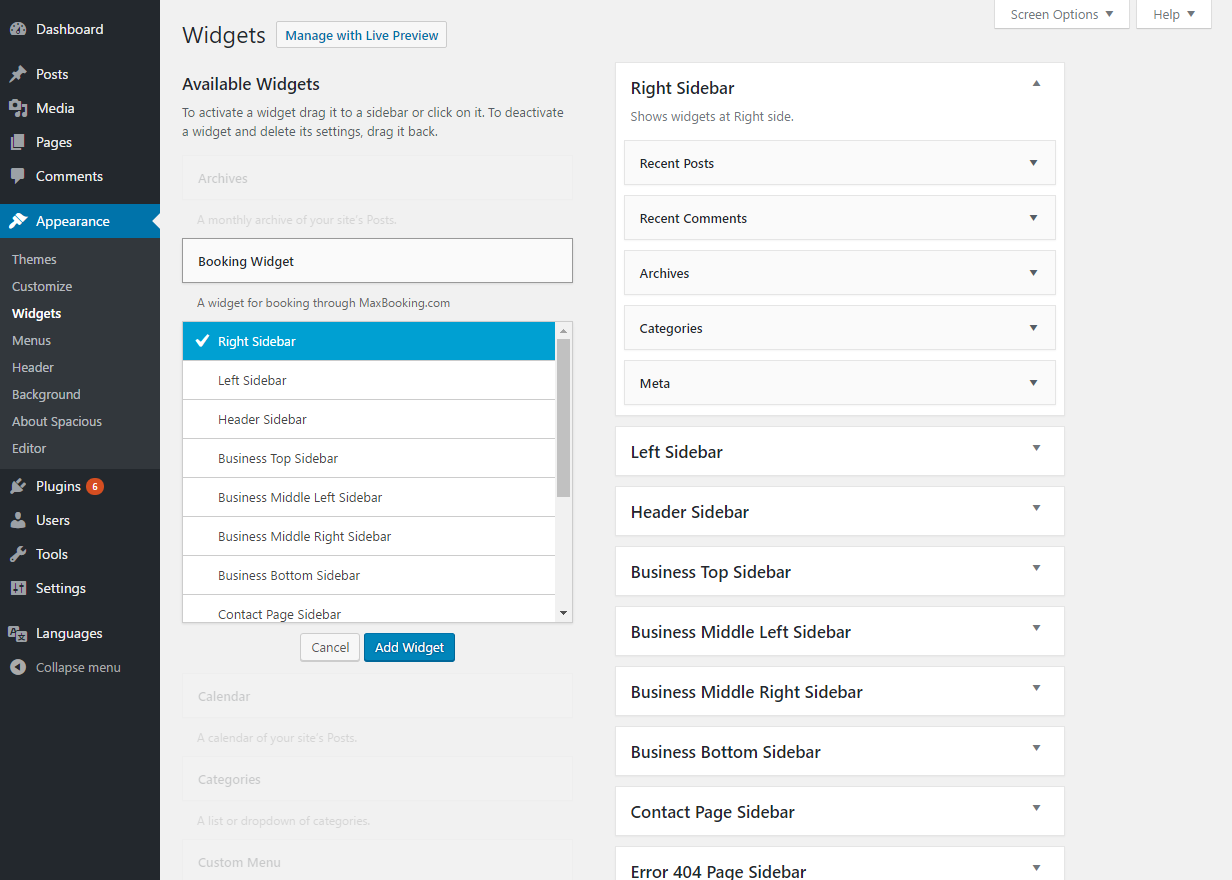


Ìgbéwọlẹ̀
Automatic installation
The plugin can be easily installed from your WordPress administration.
- Log in to your siteÌtumọ̀ Yorùbá: ’s dashboard and navigate to “Plugins” -> “Add New”.
- Input “MaxBooking.com” into the search field and wait for plugin to show up.
- Click “Install Now” and when the installation finishes click “Activate Plugin”.
Manual installation
You can install the widget manually by downloading the zip file and extracting it in your “/wp-content/plugins” directory.
Configuration
- From your dashboard navigate to “Appearance” -> “Widgets”.
- Find “Booking Widget” in the “Available Widgets” list find and click on it.
- Select which section of the theme you would like to place the widget to and click “Add Widget”.
- In the selected section click the booking widget and the property ID (corresponds to the MaxBooking.com account ID).
- Optionally configure other other settings.
- Click Save and verify that the widget shows up on your website.
Shortcode
The plugin allows you to insert a booking widget within standard content by using a shortcode named “maxbookingwidget”.
The shortcode uses the following attributes:
propertyÌtumọ̀ Yorùbá: – Required. Property ID or a list of multiple properties with id an label (format as described in the widget settings).layoutÌtumọ̀ Yorùbá: – Optional. Widget layout (style). Allowed values: “vertical”, “horizontal”.nights_defaultÌtumọ̀ Yorùbá: – Optional. Default number of nights.nights_maxÌtumọ̀ Yorùbá: – Optional. Maximum number of nights.guests_defaultÌtumọ̀ Yorùbá: – Optional. Default number of guests.guests_maxÌtumọ̀ Yorùbá: – Optional. Maximum number of guests.
Example usage:
[maxbookingwidget property="1234567" layout="vertical"]
FAQ
- Installation Instructions
-
Automatic installation
The plugin can be easily installed from your WordPress administration.
- Log in to your siteÌtumọ̀ Yorùbá: ’s dashboard and navigate to “Plugins” -> “Add New”.
- Input “MaxBooking.com” into the search field and wait for plugin to show up.
- Click “Install Now” and when the installation finishes click “Activate Plugin”.
Manual installation
You can install the widget manually by downloading the zip file and extracting it in your “/wp-content/plugins” directory.
Configuration
- From your dashboard navigate to “Appearance” -> “Widgets”.
- Find “Booking Widget” in the “Available Widgets” list find and click on it.
- Select which section of the theme you would like to place the widget to and click “Add Widget”.
- In the selected section click the booking widget and the property ID (corresponds to the MaxBooking.com account ID).
- Optionally configure other other settings.
- Click Save and verify that the widget shows up on your website.
Shortcode
The plugin allows you to insert a booking widget within standard content by using a shortcode named “maxbookingwidget”.
The shortcode uses the following attributes:
propertyÌtumọ̀ Yorùbá: – Required. Property ID or a list of multiple properties with id an label (format as described in the widget settings).layoutÌtumọ̀ Yorùbá: – Optional. Widget layout (style). Allowed values: “vertical”, “horizontal”.nights_defaultÌtumọ̀ Yorùbá: – Optional. Default number of nights.nights_maxÌtumọ̀ Yorùbá: – Optional. Maximum number of nights.guests_defaultÌtumọ̀ Yorùbá: – Optional. Default number of guests.guests_maxÌtumọ̀ Yorùbá: – Optional. Maximum number of guests.
Example usage:
[maxbookingwidget property="1234567" layout="vertical"] - Do I need to have a MaxBooking.com account to use this plugin?
-
No, to use a booking widget on your website you donÌtumọ̀ Yorùbá: ’t need to own a MaxBooking.com account. You can create a widget to search for accommodation on any MaxBooking.com property as long as you know the account ID.
If youÌtumọ̀ Yorùbá: ’re a property owner and want to set up a MaxBooking.com account, you can sign up for free here:
MaxBooking.com Signup - Where do I find the widget?
-
You can add the widget to your website by navigating to “Appearance” -> “Widgets”. The configuration details are described in the installation instructions.
- How do I change the style of the widget?
-
To ensure that the widget adopts the styles of the theme youÌtumọ̀ Yorùbá: ’re using (font style, button style, input box style, etc.) the plugin itself contains only very basic styles. Unfortunately, it is impossible to set it up so that would perfectly match all WordPress themes that exists.
However, the widget provides useful CSS classes that allow easy style customization. In WordPress version 4.7 and higher you can add your own CSS directly in the administration by going to “Appearance” -> “Customize” -> “Additional CSS”.For more information visit:
MaxBooking.com Developers Ìtumọ̀ Yorùbá: – Booking Widget for WordPress
Àwọn àgbéyẹ̀wò
Kò sí àwọn àgbéyẹ̀wò fún plugin yìí.
Àwọn Olùkópa & Olùgbéejáde
“MaxBooking Booking Widget” jẹ́ ètò ìṣàmúlò orísun ṣíṣí sílẹ̀. Àwọn ènìyàn wọ̀nyí ti ṣe ìkópa sí plugin yìí.
Àwọn Olùkópa
Túmọ̀ “MaxBooking Booking Widget” sí èdè rẹ.
Ṣe o nífẹ̀ẹ́ sí ìdàgbàsókè?
Ṣàwárí koodu, ṣàyẹ̀wò ibi ìpamọ́ SVN, tàbí ṣe àgbékalẹ̀ sí àkọsílẹ̀ ìdàgbàsókè nípasẹ̀ RSS.
Àkọsílẹ̀ àwọn àyípadà
1.1.1
- First release.
1.1.2
- Fixed layout issues caused by wpautop().
1.1.3
- Month format changed from full name to a shortened name.