
Àpèjúwe
Ledgerbridge Sync connects your WooCommerce store to your own QuickBooks Online company through the official Intuit API, using credentials from your own Intuit developer app.
What it does
- Orders – WooCommerce orders are pushed to QuickBooks Online as Invoices or Sales Receipts, and payments are recorded against the invoice. Changes made in QuickBooks can flow back into WooCommerce.
- Customers – sync customers in either direction.
- Products and inventory – pull items, pricing and stock levels from QuickBooks into WooCommerce, or push products to QuickBooks.
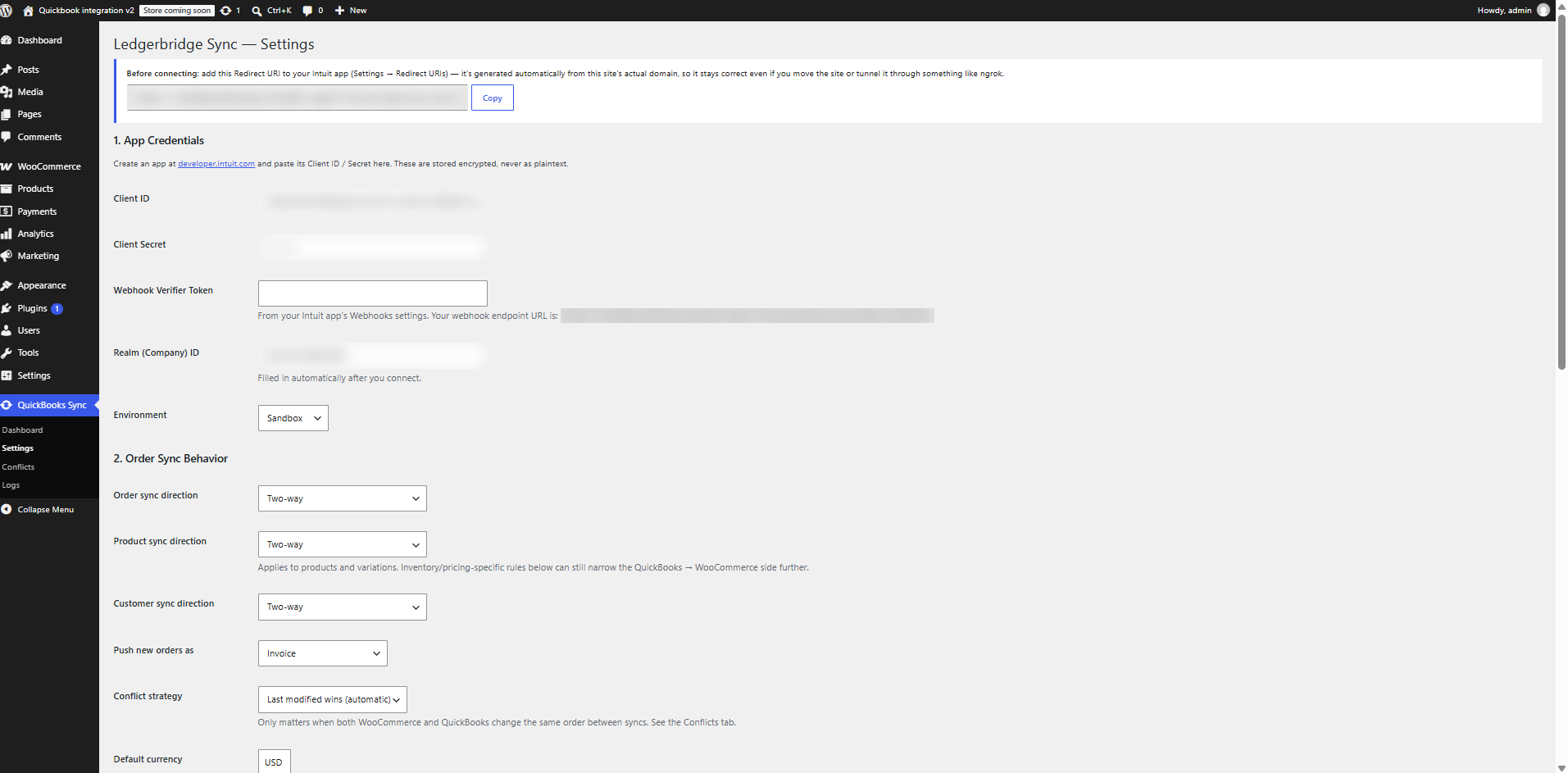
- Direction control – for each of orders, products and customers choose QuickBooks WooCommerce, WooCommerce QuickBooks, or two-way.
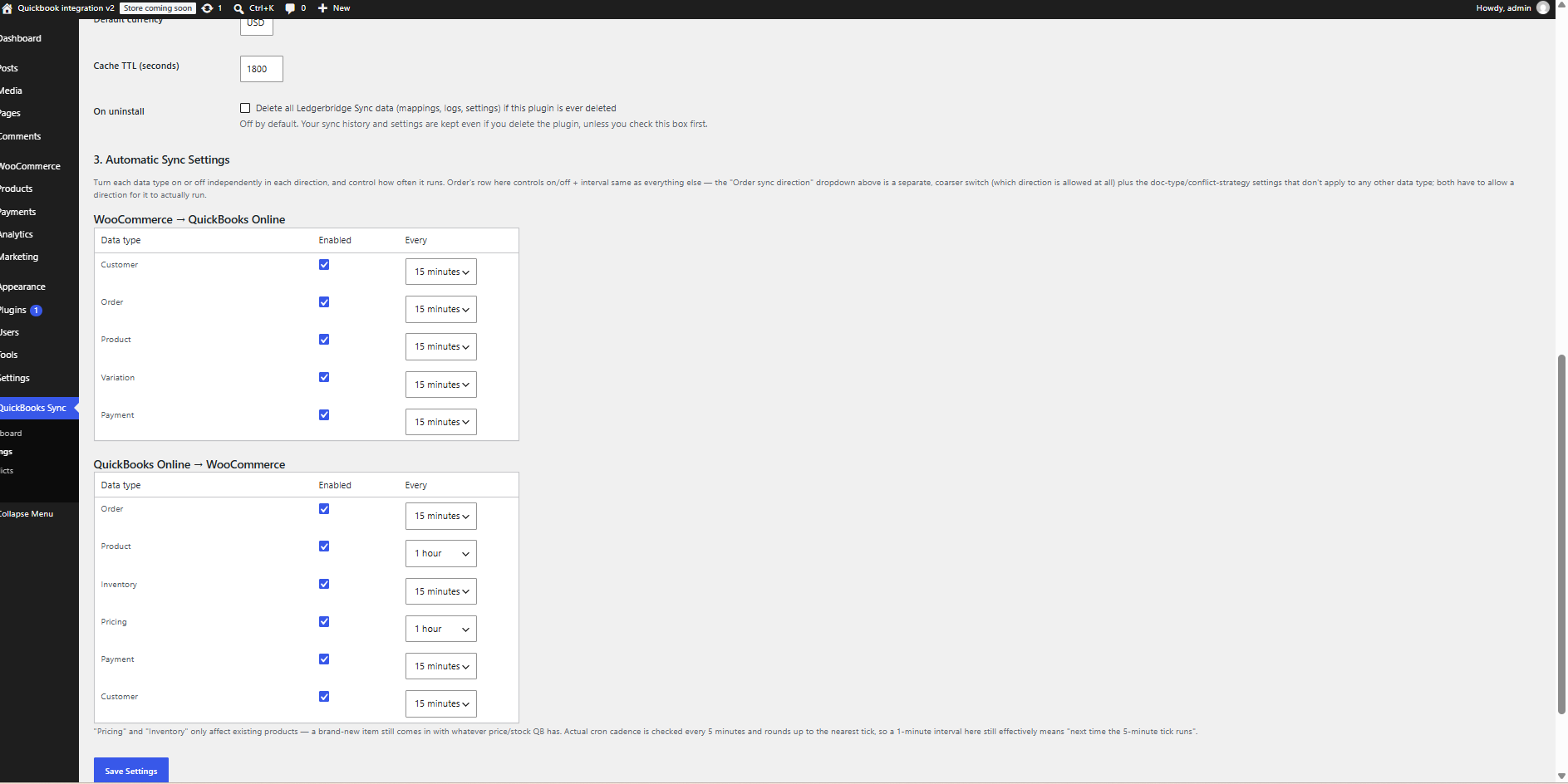
- Automatic sync schedule – an on/off switch and interval per data type and direction, run with WP-Cron.
- Webhooks – an Intuit webhook endpoint lets QuickBooks notify your site of changes (signature verified with your verifier token).
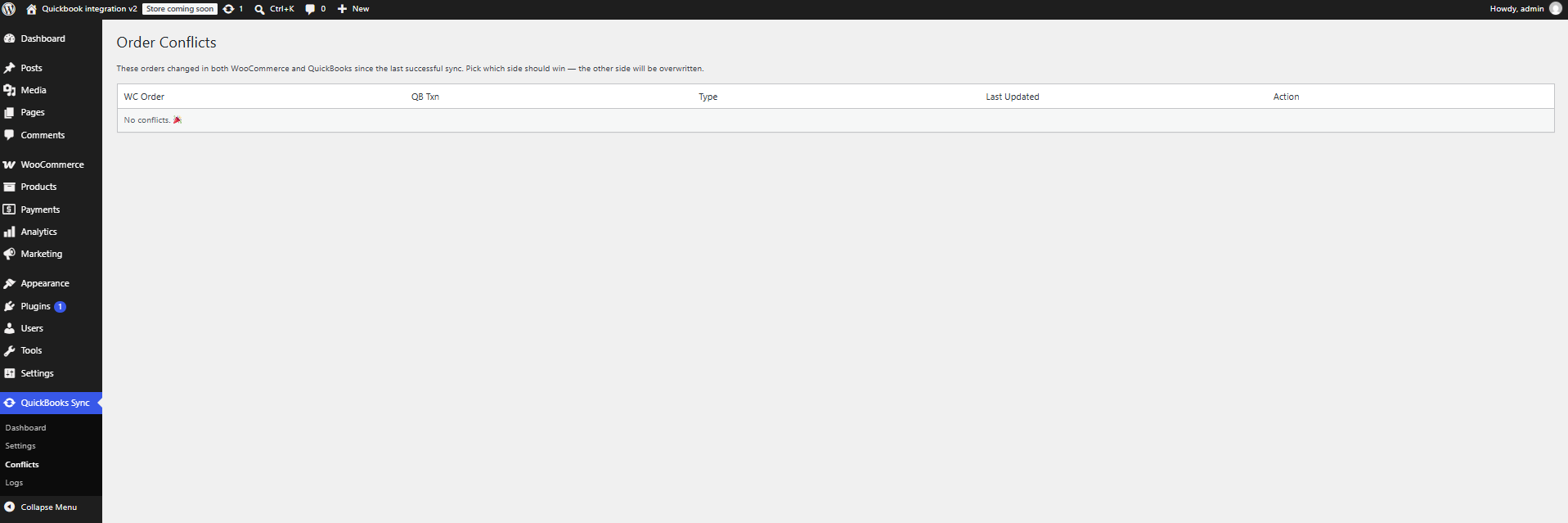
- Conflict handling – “last modified wins” or a manual review queue for orders changed on both sides.
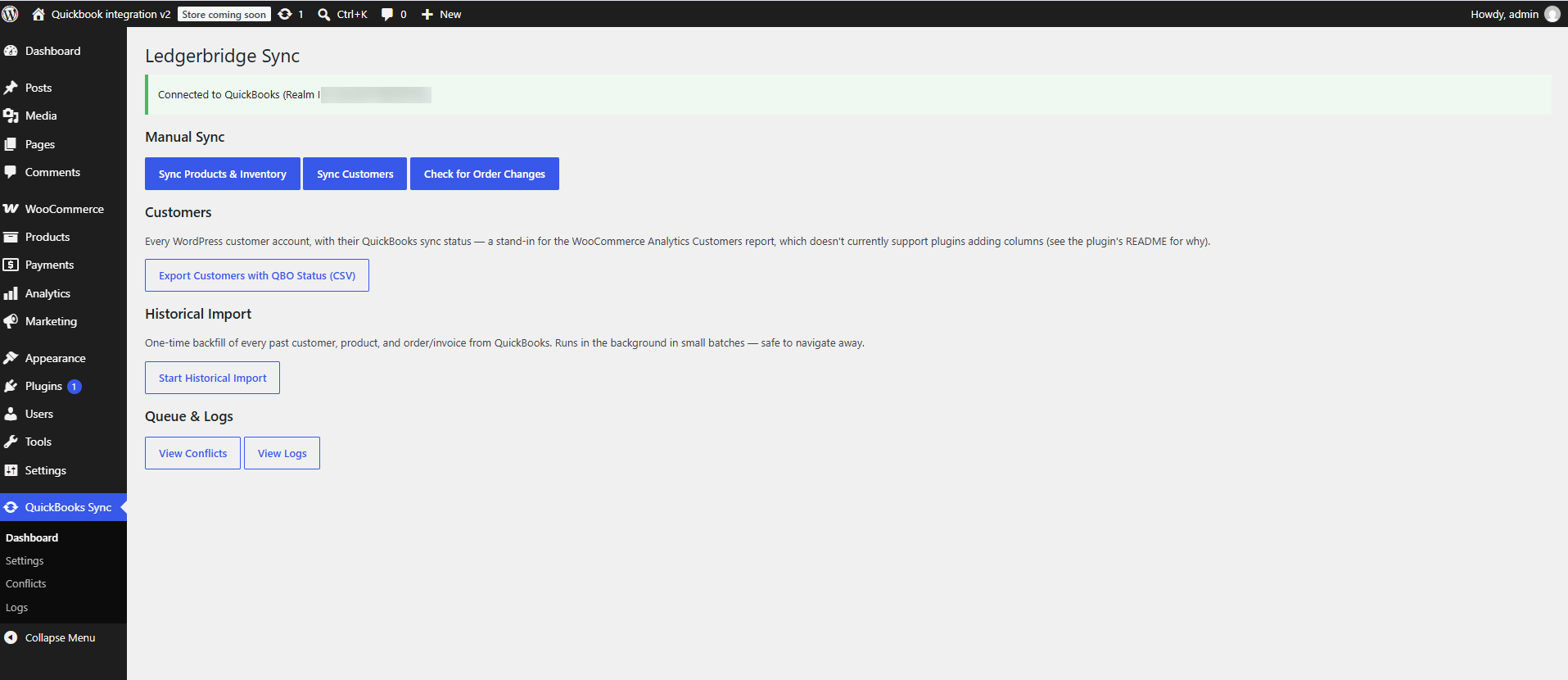
- Historical import – back-fill existing QuickBooks data in small background batches so large imports never block a request.
- Status at a glance – a “QBO Status” column on Orders, Products and Users, plus meta boxes with an “Update in QuickBooks” button, a link to open the document in QuickBooks, and PDF download.
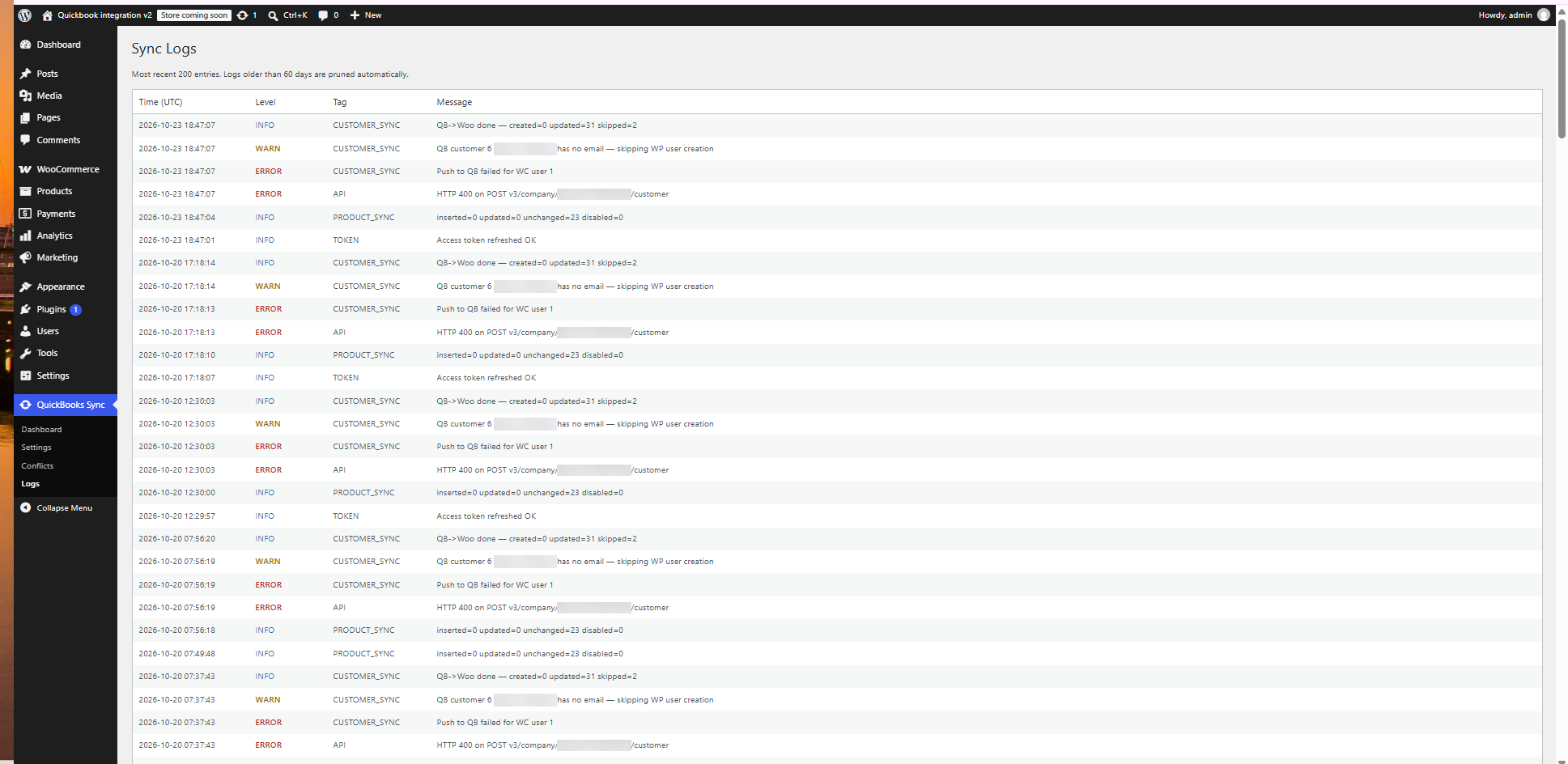
- Sync log – every sync action and error is recorded and viewable under QuickBooks Sync Logs.
- HPOS compatible – declares compatibility with WooCommerce High-Performance Order Storage.
All features are included. There are no usage limits, license keys or paid tiers in this plugin.
Requirements
- WooCommerce 8.0 or newer
- A QuickBooks Online company
- A free Intuit developer account and app (to obtain a Client ID and Client Secret)
- A site served over HTTPS for the production QuickBooks connection
Trademarks and affiliation
This plugin is not affiliated with, endorsed by or sponsored by Intuit Inc. or Automattic Inc. QuickBooks is a registered trademark of Intuit Inc. WooCommerce is a registered trademark of Automattic Inc.
External services
This plugin connects to the Intuit QuickBooks Online API. It is the core purpose of the plugin and nothing is sent until a site administrator enters their own Intuit app credentials and connects their QuickBooks company.
Intuit QuickBooks Online API and OAuth service
- Endpoints used:
https://appcenter.intuit.com/connect/oauth2(authorization),https://oauth.platform.intuit.com/oauth2/v1/tokens/bearer(token exchange and refresh),https://quickbooks.api.intuit.com(production data) andhttps://sandbox-quickbooks.api.intuit.com(sandbox data, only if the Sandbox environment is selected). - What is sent and when: OAuth credentials when connecting and refreshing the connection; and, whenever a sync runs, the WooCommerce data that is being synchronised – order details (line items, totals, currency, billing/shipping details), customer details (name, email, phone, address, company) and product details (name, SKU, price, stock) – plus requests to read the same kinds of records from QuickBooks.
- Intuit also sends webhook notifications to the REST endpoint of your own site; these are only accepted when their signature matches the verifier token you configure.
- Intuit terms and privacy: https://www.intuit.com/legal/ and https://www.intuit.com/privacy/statement/
No data is sent to the plugin author.
Àwọn àwòrán ìbòjú
Ìgbéwọlẹ̀
- Make sure WooCommerce is installed and active.
- Install and activate this plugin through the Plugins screen in WordPress.
- Create an app at https://developer.intuit.com/ and copy its Client ID and Client Secret.
- Go to QuickBooks Sync Settings. Copy the Redirect URI shown there into your Intuit appÌtumọ̀ Yorùbá: ’s redirect URIs, then paste your Client ID, Client Secret and Realm (Company) ID and save.
- Click “Connect to QuickBooks” and approve access.
- (Optional) In your Intuit app, add the webhook URL shown on the Settings screen and paste the webhook verifier token into the plugin settings.
- Choose your sync directions and schedule, then run a first sync from the Dashboard.
FAQ
-
Is there a paid version or usage limit?
-
No. Every feature in this plugin is available with no limits and no license key.
-
Do I need my own Intuit developer app?
-
Yes. You connect with the Client ID and Client Secret of your own Intuit developer app. Intuit developer accounts are free.
-
Why does QuickBooks need an HTTPS address?
-
Intuit requires HTTPS redirect URIs for production apps. The sandbox environment accepts local development addresses.
-
Where are my QuickBooks credentials stored?
-
The Client Secret, webhook verifier token and OAuth tokens are stored encrypted in your WordPress database using keys derived from your siteÌtumọ̀ Yorùbá: ’s authentication salts. If PHPÌtumọ̀ Yorùbá: ’s OpenSSL extension is not available, the plugin refuses to store them.
-
What happens to my data if I delete the plugin?
-
Nothing is removed on deactivation. On deletion, plugin tables and settings are only removed if you ticked “Delete all data on uninstall” in the settings first.
-
Can sync create duplicate or looping updates?
-
The plugin includes a sync guard that stops changes it just pulled from QuickBooks from being pushed straight back, and a conflict queue for records changed on both sides.
-
An order shows a conflict. What do I do?
-
Open QuickBooks Sync Conflicts and choose whether to keep the WooCommerce version or the QuickBooks version.
Àwọn àgbéyẹ̀wò
Kò sí àwọn àgbéyẹ̀wò fún plugin yìí.
Àwọn Olùkópa & Olùgbéejáde
“Ledgerbridge Sync” jẹ́ ètò ìṣàmúlò orísun ṣíṣí sílẹ̀. Àwọn ènìyàn wọ̀nyí ti ṣe ìkópa sí plugin yìí.
Àwọn Olùkópa
Túmọ̀ “Ledgerbridge Sync” sí èdè rẹ.
Ṣe o nífẹ̀ẹ́ sí ìdàgbàsókè?
Ṣàwárí koodu, ṣàyẹ̀wò ibi ìpamọ́ SVN, tàbí ṣe àgbékalẹ̀ sí àkọsílẹ̀ ìdàgbàsókè nípasẹ̀ RSS.
Àkọsílẹ̀ àwọn àyípadà
1.0.0
- Initial release.