

Àpèjúwe
Create perfect study notes with the Cornell Notes Gutenberg Block.
Cornell Notes provides an excellent structure for organising and summarized your notes, ideas and concepts Ìtumọ̀ Yorùbá: – this logical approach is an invaluable way to help learning and retention for students of all ages.
This plugin provides a new, dedicated Cornell Notes Gutenberg block to enable you to quickly and easily take your notes within WordPress.
How to Use Cornell Notes
- Add your title at the top of your note Ìtumọ̀ Yorùbá: – this is a summary of context of the notes.
- Take long-form notes in the right-hand column Ìtumọ̀ Yorùbá: – you can take notes during a class, lecture, video tutorial or WordCamp Talk, it doesnÌtumọ̀ Yorùbá: ’t matter. Add as many ideas as you need Ìtumọ̀ Yorùbá: – click the ‘Add Idea’ indicator to add a new idea.
- Once youÌtumọ̀ Yorùbá: ’ve finished your notes, review them and summarise the concepts with key ideas in the left-hand column.
- Finally, summarize all the notes in a sentence or two at the bottom of the page.
- To fully benefit from Cornell Notes, you should consider adding Spaced Repetition to your learning plan.
Cornell Notes contains a second block Ìtumọ̀ Yorùbá: – an Idea block Ìtumọ̀ Yorùbá: – this block is only made available as a child of the Cornell Note block Ìtumọ̀ Yorùbá: – and enables you to add as many ideas (key ideas and long-form notes) you require.
There are currently no specific settings required by the Cornell Notes Block.
Style via CSS Variables
CSS Variables are used with default settings Ìtumọ̀ Yorùbá: – you can override these in your theme by setting the variables in the root
:root{

    --note-border-style: dotted;

    --note-border-width: 2px;

    --note-border-color: #f00;

    --note-body-padding: 30px;

    --note-padding: 20px;

}
Style via Classes
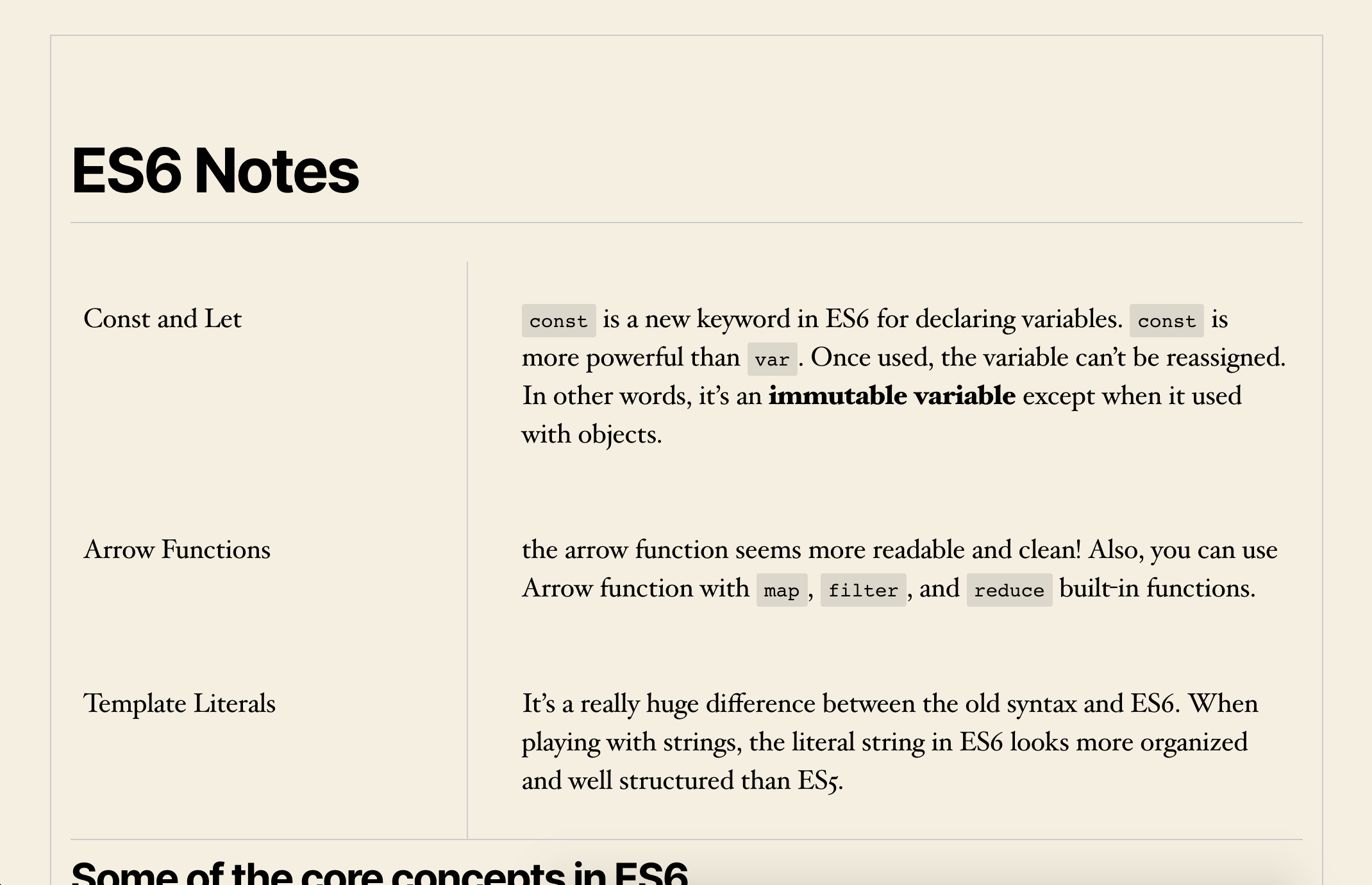
The structure of the Cornell Notes Block:
.wp-block-cornell-notes-cornell-note

    .cornell-note-title

    .wp-block-cornell-notes-cornell-idea

        .cornell-note-key-idea

        .cornell-note-long-form

    .cornell-note-summary /* forced to the bottom of the note via Flexbox */
(This structure is simplified Ìtumọ̀ Yorùbá: – you will find additional classes added via Gutenberg)
Localization
- English (default)
Translations
- English Ìtumọ̀ Yorùbá: – default
This plugin is translation-ready
How to Contribute to This Project
All contributions are welcome Ìtumọ̀ Yorùbá: – make a Pull Request or raise an issue on the Github Repo
Plugin Creator
Àwọn àwòrán ìbòjú



Àwọn ìdí
Plugin yìí pèsè 2 àwọn ìdí.
- Cornell Note
- Idea
Ìgbéwọlẹ̀
- Upload the entire
cornell-notesfolder to the/wp-content/plugins/directory - Activate the plugin through the ‘Plugins’ menu in WordPress
- Navigate to any Gutenberg-enabled editing screen and select the ‘Cornell Note’ block from the
Common Blockstab - Create your Cornell Note
- Learn and grow 🙂
FAQ
-
How can I style the block?
-
The Cornell Notes Block contains minimalist styling Ìtumọ̀ Yorùbá: – it should inherit the styles from you existing theme. Overriding the styles is straightforward (for reference, the Sass stylesheet can be found at:
cornell-notes/src/blocks/cornell-notes/styles.scssNote: The Summary section is forced to the bottom of the Cornell Note via Flexbox (
order: 1) Ìtumọ̀ Yorùbá: – this only affects the display Ìtumọ̀ Yorùbá: – in the DOM, the Summary sits below the first key idea and long-form note. -
Why am I getting some different styling at different device sizes?
-
By default, The Cornell Note Block is responsive and has a small amount of styling which changes at 600px width. If you want to override these styles, try adding the 600px breakpoint to your theme styles.
-
How do I add new ideas and concepts?
-
Simply click the ‘Add Idea’ button which is located directly above the notes summary section (see screenshot)
-
Is there a limit to the number of ideas I can add?
-
No, you can keep adding as many ideas as you like
-
Will I be able to search for the ideas via the WordPress Search Box?
-
Yes, your Cornell Note ideas will be searchable via the standard WordPress search or any other search tool which searches your content.
-
Can I tag the notes?
-
No, not yet Ìtumọ̀ Yorùbá: – this is a feature weÌtumọ̀ Yorùbá: ’re looking to add later.
-
Is the block likely to be well supported?
-
The Cornell Notes block is a composite of core blocks Ìtumọ̀ Yorùbá: – so you get all the usual editing, support, security and functional options of core WordPress blocks baked-in 🙂
-
Are there any ambitions to extend the plugin to incorporate Spaced Repetition?
-
ItÌtumọ̀ Yorùbá: ’s funny you should ask that Ìtumọ̀ Yorùbá: – yes, definitely maybe.
Àwọn àgbéyẹ̀wò
Kò sí àwọn àgbéyẹ̀wò fún plugin yìí.
Àwọn Olùkópa & Olùgbéejáde
“Cornell Notes Gutenberg Block” jẹ́ ètò ìṣàmúlò orísun ṣíṣí sílẹ̀. Àwọn ènìyàn wọ̀nyí ti ṣe ìkópa sí plugin yìí.
Àwọn Olùkópa
A ti túmọ̀ “Cornell Notes Gutenberg Block” sí èdè agbègbè 1 kan. Ọpẹ́lọpẹ́ fún àwọn atúmọ̀ èdè fún àwọn ìkópa wọn.
Túmọ̀ “Cornell Notes Gutenberg Block” sí èdè rẹ.
Ṣe o nífẹ̀ẹ́ sí ìdàgbàsókè?
Ṣàwárí koodu, ṣàyẹ̀wò ibi ìpamọ́ SVN, tàbí ṣe àgbékalẹ̀ sí àkọsílẹ̀ ìdàgbàsókè nípasẹ̀ RSS.