
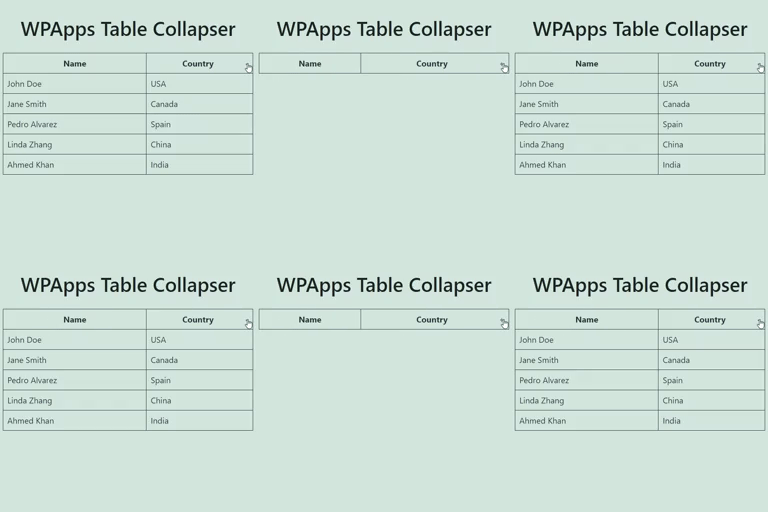
Àpèjúwe
WPApps Table Collapser is a lightweight plugin that makes your tables collapsible. By adding a collapsible-table class to your tables, you enable users to toggle the visibility of the table body by simply clicking on the table header.
Features
- Collapsible Tables: Make any table collapsible by adding a simple class.
- Toggle Indicator: Automatically adds a
+/-indicator to the last column of the table header. - Customizable: Style the toggle indicator and table appearance with your own CSS.
- Block Editor Support: Includes a Gutenberg block for easy table creation and collapsing functionality.
- Mobile Friendly: Works seamlessly on mobile devices with responsive design.
Usage:
- Ensure that your table has a
<thead>tag for the table header, though itÌtumọ̀ Yorùbá: ’s not mandatory if you enable the “Allow Table Without<thead>” option in settings. - Add the class
collapsible-tableto your table. - Optionally, add a
data-titleattribute to your table to set a custom title for the mobile compact view. - The last column in the table header will have a toggle indicator (
+/-) added to it. Clicking anywhere in the header will show or hide the table body.
Àwọn àwòrán ìbòjú


Àwọn ìdí
Plugin yìí pèsè 1 ìdí.
- Table Collapser A block that makes tables collapsible.
Ìgbéwọlẹ̀
- Upload the
wpapps-table-collapserfolder to the/wp-content/plugins/directory. - Activate the plugin through the ‘Plugins’ menu in WordPress.
- Add the
collapsible-tableclass to any table you want to make collapsible.
FAQ
-
Does the table require any specific structure?
-
For optimal functionality, the table should have a
<thead>tag defining the header. The collapsing functionality is primarily activated by clicking on this header. However, if you enable the “Allow Table Without<thead>” option in the settings, the plugin will also work without a<thead>. -
Can I style the toggle indicator?
-
Yes, you can style the toggle indicator by targeting the
.toggle-indicatorclass in your CSS. -
How do I set a custom title for the mobile view?
-
You can add a
data-titleattribute to your table element to set a custom title that will be displayed in the mobile compact view. -
Is the plugin compatible with the Gutenberg block editor?
-
Yes, the plugin includes a Gutenberg block for easy creation and management of collapsible tables.
Àwọn àgbéyẹ̀wò
Kò sí àwọn àgbéyẹ̀wò fún plugin yìí.
Àwọn Olùkópa & Olùgbéejáde
“WPApps Table Collapser” jẹ́ ètò ìṣàmúlò orísun ṣíṣí sílẹ̀. Àwọn ènìyàn wọ̀nyí ti ṣe ìkópa sí plugin yìí.
Àwọn Olùkópa
Túmọ̀ “WPApps Table Collapser” sí èdè rẹ.
Ṣe o nífẹ̀ẹ́ sí ìdàgbàsókè?
Ṣàwárí koodu, ṣàyẹ̀wò ibi ìpamọ́ SVN, tàbí ṣe àgbékalẹ̀ sí àkọsílẹ̀ ìdàgbàsókè nípasẹ̀ RSS.
Àkọsílẹ̀ àwọn àyípadà
1.1.0
- Fixed a bug where the block editor css gets loaded in the front-end.
1.0.0
- Initial release.