

Àpèjúwe
SVG AutoMotion makes it effortless to apply clean, performant animations to SVG graphics as they scroll into view — perfect for adding motion to brand logos, icons, and illustrations.
See examples at viking.infy.uk/svg-automotion
Key features:
Ìtumọ̀ Yorùbá: – Gutenberg block and shortcode support
Ìtumọ̀ Yorùbá: – Fade, rotate, scale, and slide effects
Ìtumọ̀ Yorùbá: – Adjustable animation duration
Ìtumọ̀ Yorùbá: – Lightweight, pure JavaScript (no dependencies)
Ìtumọ̀ Yorùbá: – Works with any SVG in your media library
Ìtumọ̀ Yorùbá: – Add a link to the image if needed
Usage
Using the Gutenberg Block
- Add a new block and search for SVG AutoMotion.
- Select your SVG image from the Media Library.
- Choose which animations to apply and set the animation duration.
- Add a link to the image if needed under link settings
- Save or preview your post to see the animation in action.
See Screenshot 1 and Screenshot 2.
Using the Shortcode
You can also insert animations anywhere using the [svg_automotion] shortcode.
Basic example:
[svg_automotion src=”2025/10/automotionlogo.svg”]
You can combine multiple effects:
[svg_automotion src=”2025/10/automotionlogo.svg” fade=”true” slide=”true” rotate=”false” scale=”true” duration=”4000Ìtumọ̀ Yorùbá: ″]
You can also add a link to the shortcode
[svg_automotion src=”2025/10/automotionlogo.svg” fade=”true” slide=”true” rotate=”false” scale=”true” duration=”4000Ìtumọ̀ Yorùbá: ″ link_url=”https://wordpress.org” link_newtab=”true” ]
Parameters:
Ìtumọ̀ Yorùbá: – src — relative or full URL path to your SVG file
Ìtumọ̀ Yorùbá: – fade, rotate, scale, slide — enable/disable each effect
Ìtumọ̀ Yorùbá: – duration — total animation time in milliseconds
Ìtumọ̀ Yorùbá: – link_url — url to link to (optional)
Ìtumọ̀ Yorùbá: – link_newtab — set to true if you wish the link to open in a new tab
Àwọn àwòrán ìbòjú

Adding an SVG AutoMotion Block 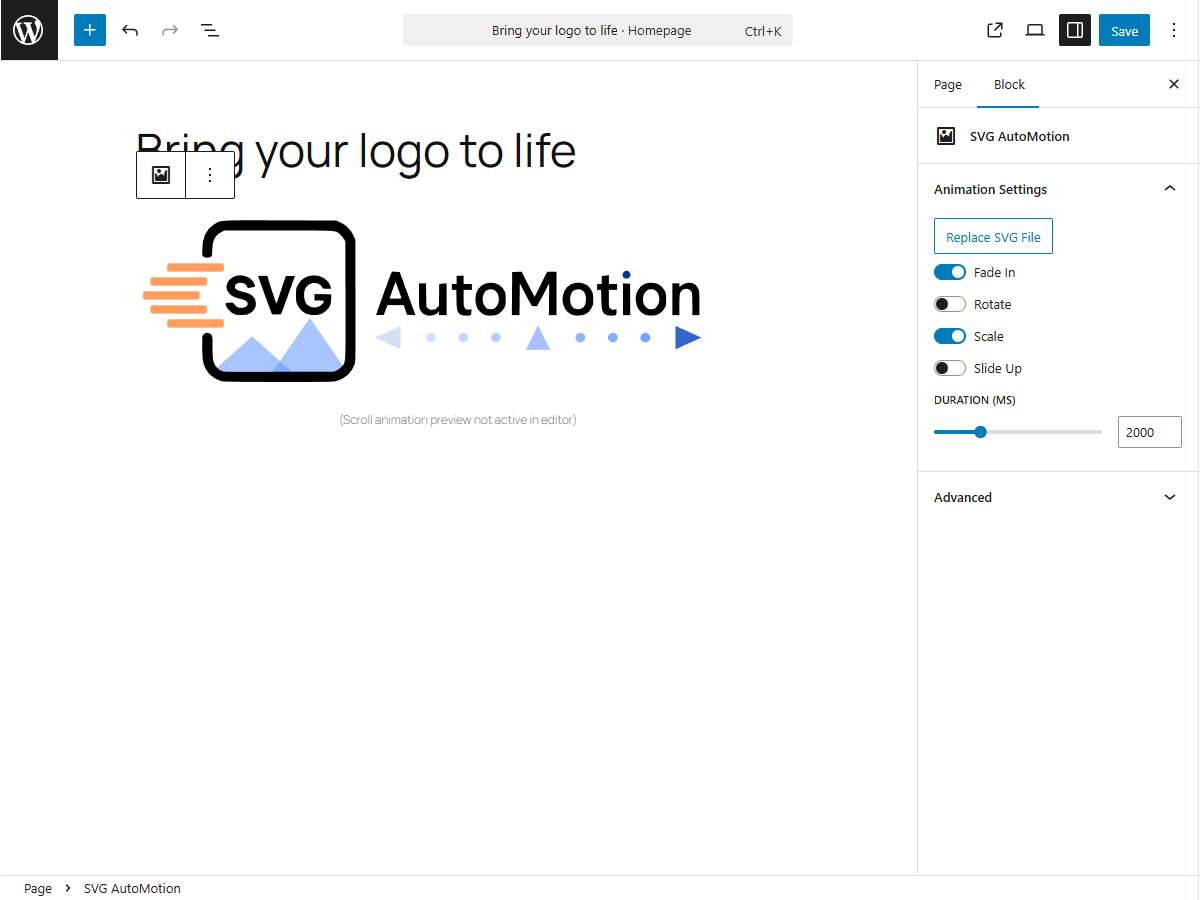
The SVG AutoMotion Settings
Ìgbéwọlẹ̀
- Upload the plugin files to the
/wp-content/plugins/svg-automotion/directory, or install through the WordPress plugin screen. - Activate the plugin through the Plugins menu in WordPress.
- Add an SVG AutoMotion block or use the
[svg_automotion]shortcode.
FAQ
-
How do I upload SVG files into my media library?
-
If you haven’t yet, install a plugin that allows SVG uploads such as “SVG Support”.
-
Does it work with any SVG file?
-
Yes, as long as the SVG structure is valid.
-
Can I control which animations run?
-
Yes. You can toggle fade, rotate, scale, and slide animations from the block settings.
-
Will it slow down my site?
-
No. The script is tiny, loads only when needed, and animations trigger only when visible.
-
What sets the order of the animation?
-
The animation applies to image elements in the order they appear in the SVG layers.
Àwọn àgbéyẹ̀wò


Àwọn Olùkópa & Olùgbéejáde
“SVG AutoMotion” jẹ́ ètò ìṣàmúlò orísun ṣíṣí sílẹ̀. Àwọn ènìyàn wọ̀nyí ti ṣe ìkópa sí plugin yìí.
Àwọn Olùkópa
Túmọ̀ “SVG AutoMotion” sí èdè rẹ.
Ṣe o nífẹ̀ẹ́ sí ìdàgbàsókè?
Ṣàwárí koodu, ṣàyẹ̀wò ibi ìpamọ́ SVN, tàbí ṣe àgbékalẹ̀ sí àkọsílẹ̀ ìdàgbàsókè nípasẹ̀ RSS.
Àkọsílẹ̀ àwọn àyípadà
1.1.0
- Added ability to add a link
- Removed unwanted pause in animation when gradients are defined in the SVG file
1.0.0
- Initial release with Gutenberg block and shortcode support.