
Àpèjúwe
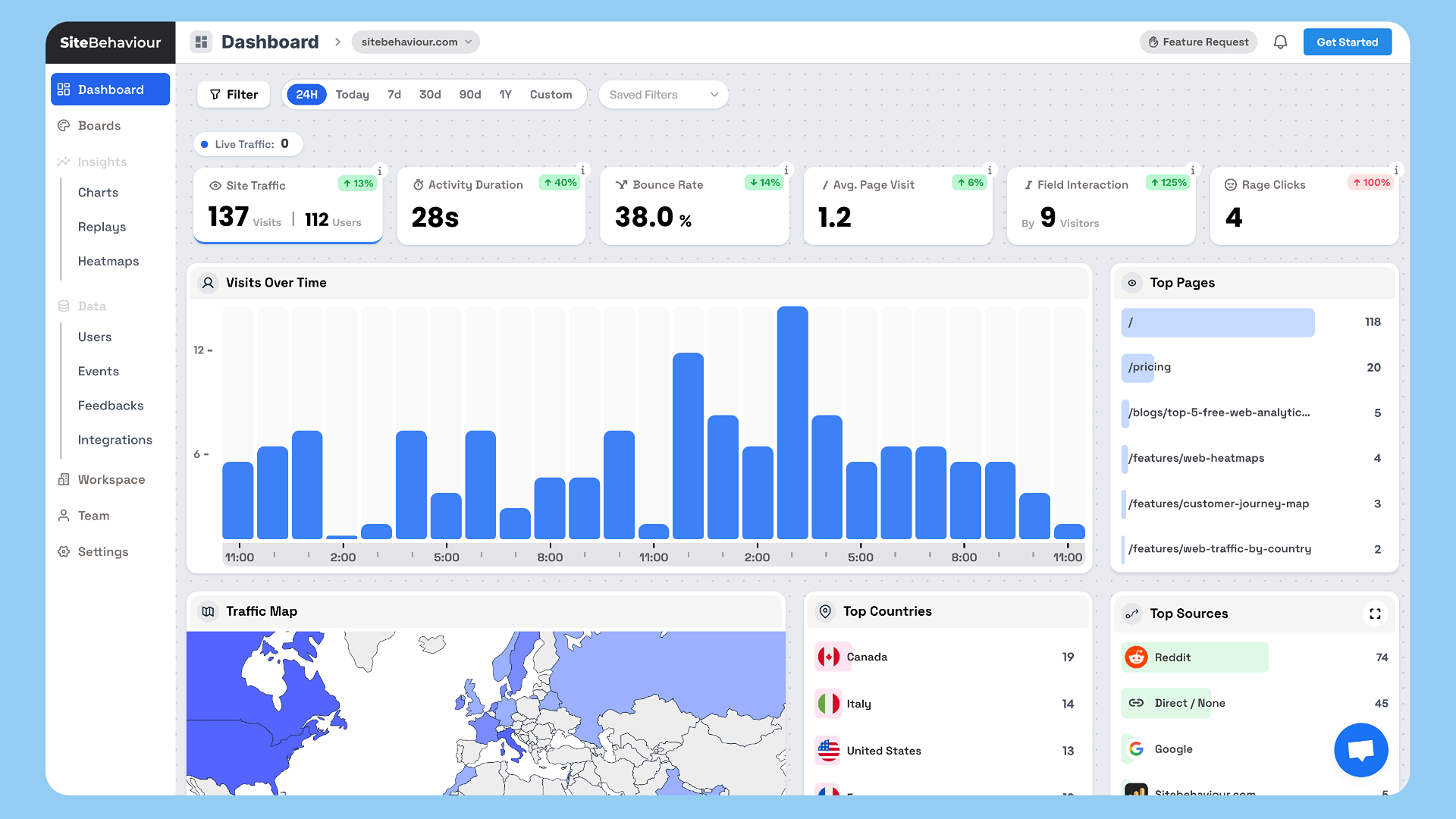
SiteBehaviour Analytics is a simple WordPress plugin that allows you to add your tracking code directly into the section of your website for seamless visitor tracking.
This tool is designed to integrate with SiteBehaviour Analytics, your one-stop solution for website analytics. Once you sign up for an SiteBehaviour Analytics account, youÌtumọ̀ Yorùbá: ’ll receive a unique tracking code that you can paste into the plugin settings.
Features
- Add a custom tracking code to the section of your website
- Simple interface for pasting and managing your analytics tracking code
- Integrates with your SiteBehaviour Analytics account for real-time visitor data
- Lightweight and optimized for performance
How it works
- Sign up for an SiteBehaviour Analytics account at https://web.sitebehaviour.com.
- Once youÌtumọ̀ Yorùbá: ’ve created an account, youÌtumọ̀ Yorùbá: ’ll get a unique tracking code in your workspaceÌtumọ̀ Yorùbá: ’s website settings.
- Paste the tracking code into the SiteBehaviour Analytics plugin settings under Settings > SiteBehaviour Analytics.
- Save your changes, and youÌtumọ̀ Yorùbá: ’re done! Your website is now being tracked through SiteBehaviour Analytics.
Àwọn àwòrán ìbòjú
Ìgbéwọlẹ̀
- Upload the plugin files to the
/wp-content/plugins/SiteBehaviour-analytics/directory, or install the plugin through the WordPress Plugins screen directly. - Activate the plugin through the ‘Plugins’ screen in WordPress.
- Go to Settings > SiteBehaviour Analytics to configure the plugin.
- Paste your SiteBehaviour Analytics tracking code and save the settings.
FAQ
-
How do I sign up for an SiteBehaviour Analytics account?
-
You can sign up for an SiteBehaviour Analytics account by visiting https://web.sitebehaviour.com.
-
Where do I find my tracking code?
-
After signing up and logging into your SiteBehaviour Analytics account, youÌtumọ̀ Yorùbá: ’ll find your tracking code in the Workspace section .
-
Will SiteBehaviour Analytics slow down my website?
-
No, SiteBehaviour Analytics is optimized to be lightweight and adds only a minimal amount of JavaScript to your website.
-
Can I remove the tracking code from my website?
-
Yes, if you want to stop tracking, simply remove the tracking code from the plugin settings and deactivate or uninstall the plugin.
Àwọn àgbéyẹ̀wò
Kò sí àwọn àgbéyẹ̀wò fún plugin yìí.
Àwọn Olùkópa & Olùgbéejáde
“SiteBehaviour Analytics” jẹ́ ètò ìṣàmúlò orísun ṣíṣí sílẹ̀. Àwọn ènìyàn wọ̀nyí ti ṣe ìkópa sí plugin yìí.
Àwọn Olùkópa

Túmọ̀ “SiteBehaviour Analytics” sí èdè rẹ.
Ṣe o nífẹ̀ẹ́ sí ìdàgbàsókè?
Ṣàwárí koodu, ṣàyẹ̀wò ibi ìpamọ́ SVN, tàbí ṣe àgbékalẹ̀ sí àkọsílẹ̀ ìdàgbàsókè nípasẹ̀ RSS.
Àkọsílẹ̀ àwọn àyípadà
1.0.0
- Initial release of SiteBehaviour Analytics.
- Adds a custom tag to the section for tracking.
1.1
- Optimized the Tracking script
1.2
- Optimized the Tracking script