
Àpèjúwe
This plugin allows you to show the current weather info for any location. You can show the temperature in Celsius or Fahrenheit units, show wind speed, max & min temperature, weather description, date and weather icon.
You can use this plugin as a block (with a name “Weather Widget WP”) in the WordPress block editor in a page, post or as a widget in a sidebar, or as a shortcode Ìtumọ̀ Yorùbá: – example [weather_widget_wp_location city="London" title="London, UK"].
Customization
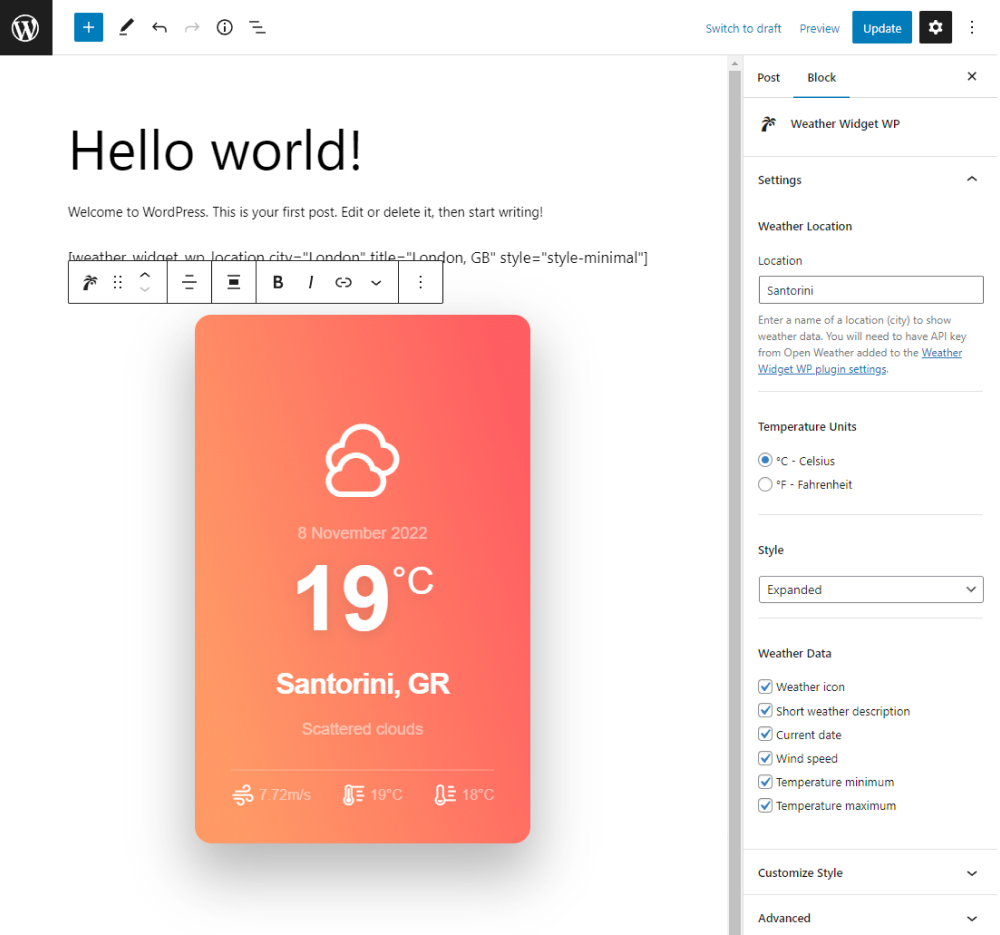
You can customize the weather widget however you like. The widget have two styles: minimal & expanded that show different amount of data.
When using the custom block, click the gear icon (top right) to show the settings, under Customize Style there numerous settings to style the widget in order to match your website style.
API Key
The plugin gets the weather data from Open Weather API, so you will need to have account & API key to use it. If you donÌtumọ̀ Yorùbá: ’t have an account follow the instructions in the plugin settings page to setup an account.
Also, keep in mind that newly created API keys will need ~ 15 min to be activated and show data, so you might see an API error in meantime.
Caching
You can utilize the caching feature from the plugin settings page, to save (cache) the weather data for number of hours, so you donÌtumọ̀ Yorùbá: ’t exceed the you API free tier rate too fast.
This is enable by default, so the weather data on the front-end might not match the back-end editor (this is because of the caching).
Setting the cache setting to 0 will disable the caching Ìtumọ̀ Yorùbá: – not recommended.
Shortcode [weather_widget_wp_location]
Recommended use of this plugin is as a block via the WordPress block editor Ìtumọ̀ Yorùbá: – for ease of use, but you can use the plugin also as a shortcode, bellow are all the shortcode attributes explained.
Example: [weather_widget_wp_location city="Santorini" title="Santorini, Greece" style="style-minimal" units="F" desc=1 icon=0]
styleÌtumọ̀ Yorùbá: – two options: ‘style-expanded’ or ‘style-minimal’, e.g.style="style-minimal";cityÌtumọ̀ Yorùbá: – location for which the weather data will be shown e.gcity="london";titleÌtumọ̀ Yorùbá: – the title inside the widget e.g.title="London, UK";unitsÌtumọ̀ Yorùbá: – temperature units, two options Celsius or Fahrenheit, e.g.units="C";descÌtumọ̀ Yorùbá: – show short weather description (1 Ìtumọ̀ Yorùbá: – enable, 0 Ìtumọ̀ Yorùbá: – disable), e.g.desc=0;iconÌtumọ̀ Yorùbá: – show weather icon (1 Ìtumọ̀ Yorùbá: – enable, 0 Ìtumọ̀ Yorùbá: – disable), e.g. icon=0;dateÌtumọ̀ Yorùbá: – show the current date (1 Ìtumọ̀ Yorùbá: – enable, 0 Ìtumọ̀ Yorùbá: – disable), e.g.date=0;windÌtumọ̀ Yorùbá: – show the wind speed (1 Ìtumọ̀ Yorùbá: – enable, 0 Ìtumọ̀ Yorùbá: – disable), e.g.wind=0;maxÌtumọ̀ Yorùbá: – show the max. temperature prediction (1 Ìtumọ̀ Yorùbá: – enable, 0 Ìtumọ̀ Yorùbá: – disable), e.g.max=0;minÌtumọ̀ Yorùbá: – show the min. temperature prediction (1 Ìtumọ̀ Yorùbá: – enable, 0 Ìtumọ̀ Yorùbá: – disable), e.g.min=0;block_alignÌtumọ̀ Yorùbá: – alignment of the widget (left, right, center, wide, full);css_classÌtumọ̀ Yorùbá: – add custom css class;css_styleÌtumọ̀ Yorùbá: – add custom inline style;
Errors (API Errors)
- Most common error is the “new API key” Ìtumọ̀ Yorùbá: – does not show any weather data and it says “Weather API Error” each new API key created will need (around) 15 minutes to be active and show data so please be patient and check again after 15 min.;
- Typo in the location input field, make sure your location is correctly written;
- It is (rare) possibility that the Open Weather API currently down;
- You have exceeded the free tier of you Open Weather account and they are rate limiting you Ìtumọ̀ Yorùbá: – this is possible if you have a huge amount of visitors to your website,
so make sure you are utilizing the caching feature in the plugin settings page.
Àwọn àwòrán ìbòjú


Àwọn ìdí
Plugin yìí pèsè 1 ìdí.
- Weather Widget WP
Ìgbéwọlẹ̀
Installation from within WordPress
- Visit Plugins > Add New
- Search for Weather Widget WP.
- Install and activate the Weather Widget WP plugin.
Manual installation
- Upload the entire
weather-widget-wpfolder to the/wp-content/plugins/directory; - Activate the plugin through the Plugins screen (Plugins > Installed Plugins);
After Activation
You will find Weather Widget menu in your WordPress admin screen. Click on that and add your own Open Weather API key, in order to show weather data in the widget. It will need around 15 min for newly created api keys to show data, so you might see API error shown in the meantime, so please be patient and check again after 15 min.
FAQ
-
Why the weather data is incorrect at (some) location?
-
The plugin only display the weather data received from the Open Weather API, we donÌtumọ̀ Yorùbá: ’t know what the data is and if is correct or not.
-
Why the weather data in the back-end does not match the front-end?
-
The weather data on the front end is cached (by default) and in the back-end is not, so in rare case it might not match, that means caching works.
You can adjust the caching time via the plugin settings page, set 0 to disable it Ìtumọ̀ Yorùbá: – not recommended. -
Why the widget shows API Error/s?
-
- Most common error is the “new API key” Ìtumọ̀ Yorùbá: – does not show any weather data and it says “Weather API Error” each new API key created will need (around) 15 minutes to be active and show data so please be patient and check again after 15 min.;
- Typo in the location input field, make sure your location is correctly written;
- It is (rare) possibility that the Open Weather API currently down;
- You have exceeded the free tier of you Open Weather account and they are rate limiting you Ìtumọ̀ Yorùbá: – this is possible if you have a huge amount of visitors to your website,
so make sure you are utilizing the caching feature in the plugin settings page.
-
Is support available for this plugin?
-
This is a free plugin, so there is no active support, but your feedback Ìtumọ̀ Yorùbá: – especially bug reports is welcomed.
You can submit your feedback in the plugin support forum or get in touch with the plugin author on the Ajdethemes website, any reported bug will be fixed as soon as possible. -
Where can I submit my plugin feedback?
-
Providing feedback is encouraged and much appreciated! You can submit your feedback either in the plugin support forum or, if you have a specific issue to report, via the Ajdethemes website.
Àwọn àgbéyẹ̀wò


Àwọn Olùkópa & Olùgbéejáde
“Weather Widget WP” jẹ́ ètò ìṣàmúlò orísun ṣíṣí sílẹ̀. Àwọn ènìyàn wọ̀nyí ti ṣe ìkópa sí plugin yìí.
Àwọn Olùkópa
Túmọ̀ “Weather Widget WP” sí èdè rẹ.
Ṣe o nífẹ̀ẹ́ sí ìdàgbàsókè?
Ṣàwárí koodu, ṣàyẹ̀wò ibi ìpamọ́ SVN, tàbí ṣe àgbékalẹ̀ sí àkọsílẹ̀ ìdàgbàsókè nípasẹ̀ RSS.